How to Add AI Virtual Try-On to Your Shopify Store (2026 Guide)
Learn how to add AI virtual try-on to your Shopify fashion store in under 30 minutes. No coding required. Step-by-step guide for fashion and apparel merchants.
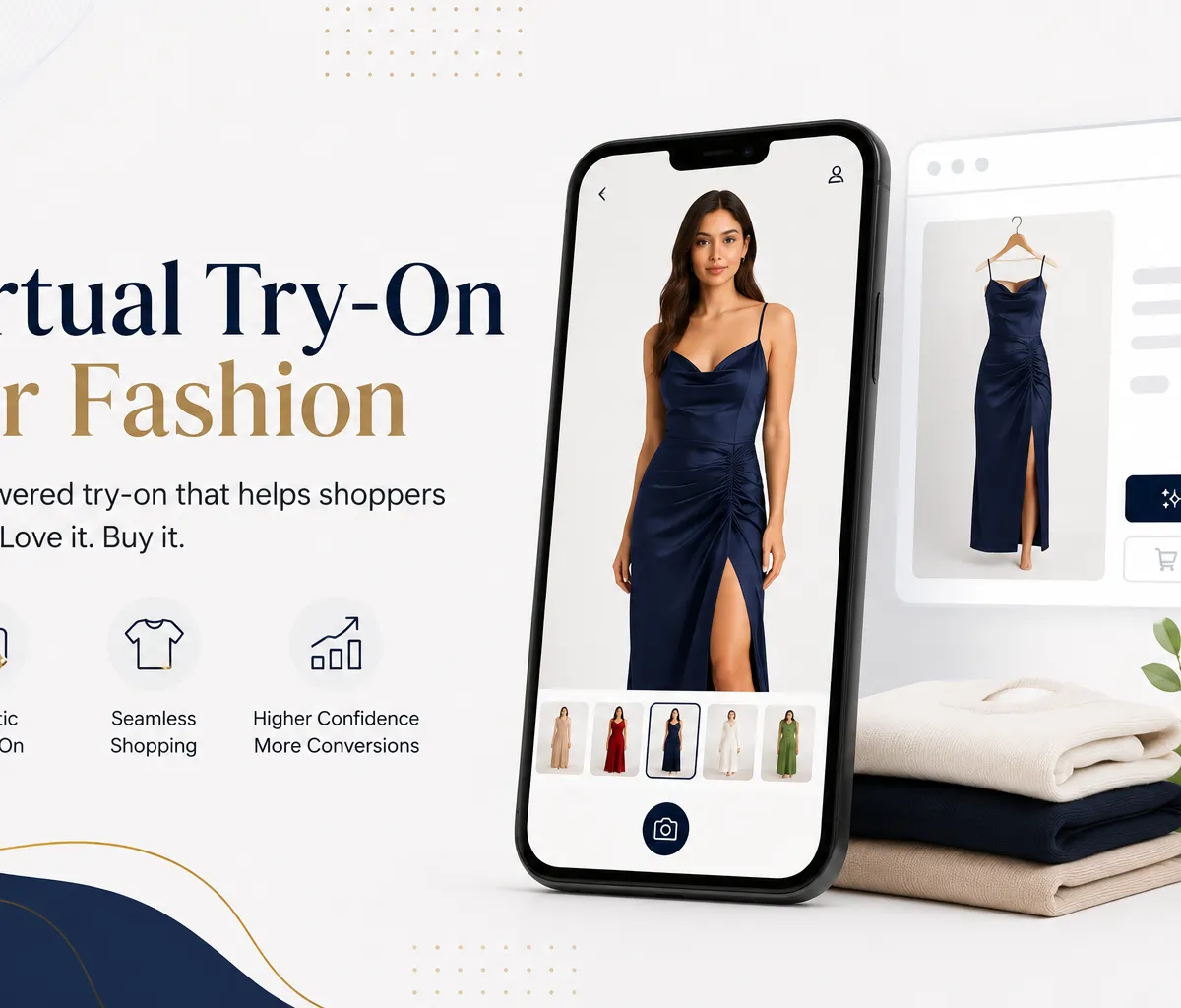
If you run a fashion store on Shopify, there is one question your customers ask before every purchase even if they never say it out loud: will this look good on me? They scroll through your product photos, they read the description, they check the size guide — and then a lot of them still leave without buying. Not because your products are bad. Because there is no way for them to picture themselves in it.
AI virtual try-on solves that. It lets shoppers upload a photo of themselves and see exactly how your clothing looks on their body before they add it to cart. Stores using this technology are seeing conversion rates climb and return rates fall consistently. And the good news is that adding it to your Shopify store no longer requires a developer, a 3D modeling budget, or weeks of setup time.
This guide walks you through exactly how to add AI virtual try-on to your Shopify store, what to look for when choosing an app, and what to expect after you install it.
What AI Virtual Try-On Actually Does on a Shopify Store
Before diving into setup, it helps to understand what the technology is actually doing.
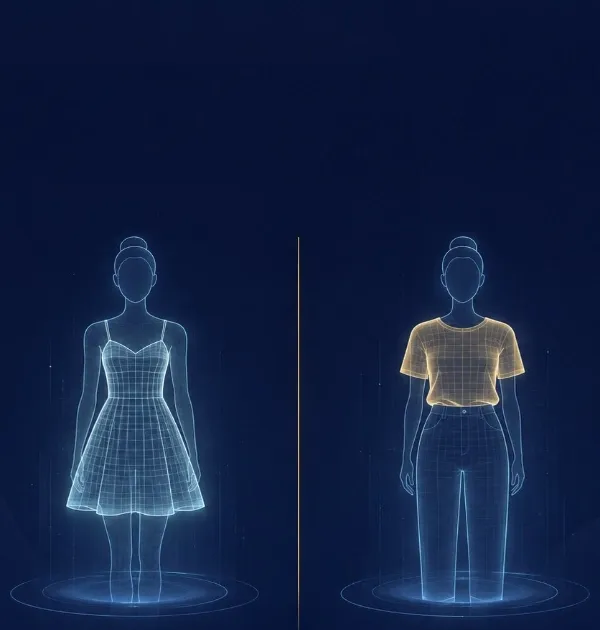
When a shopper clicks the try-on button on your product page, they are prompted to upload a photo of themselves. The AI takes that photo and your product image and generates a new image showing the shopper wearing your clothing. This is not an AR overlay that sticks a flat image on top of a camera feed. Generative AI actually understands how fabric drapes, folds, and sits on a body, and renders a photorealistic result that looks like the person is genuinely wearing the garment.
The shopper sees themselves in your product. That visual confirmation is what drives the purchase decision. They are no longer guessing. They know.
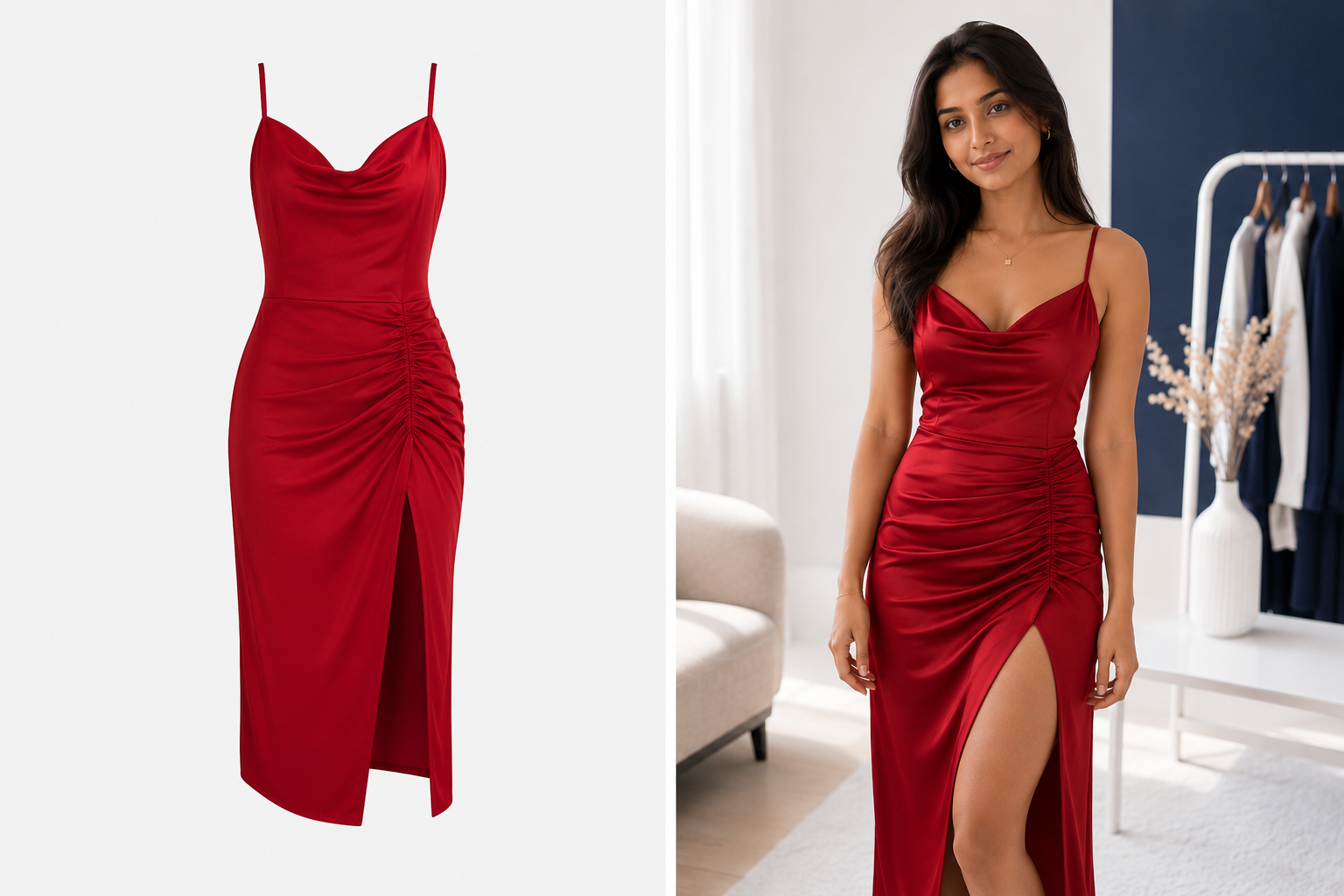
Works with existing product photos — no 3D models needed
One of the biggest hurdles merchants face when researching a virtual try on shopify app is the assumption that they need expensive 3D models. That is no longer true. Modern generative AI virtual try on shopify apps require no 3D model preparation. They work entirely from your existing 2D product photos—whether those are flat lays, ghost mannequins, or on-model shots. The AI engine understands the garment's texture, shape, and drape from a standard image and accurately wraps it onto the shopper's uploaded photo. This means you can launch your fitting room in minutes without re-shooting your catalog or hiring 3D artists.
What You Need Before You Start
The good news is that the requirements are minimal. You do not need a developer, custom code, or 3D models of your products.
Here is what you need:
Your Shopify store needs to be on any paid plan. Virtual try-on apps install through the Shopify App Store and require an active store. The free trial plan works for testing but you will need a paid plan to go live with customers.
Your product photos should be clear and show the garment on a model or as a flat lay. The AI works from your existing product images, so you do not need to prepare any special assets. Standard e-commerce product photography is fine.
A customer-facing product page where you want the try-on button to appear. The app installs a button block directly into your Shopify theme through the Theme Editor, so no code editing is needed.
That is it. Most merchants go from install to live in under 30 minutes.
Step by Step: How to Add Virtual Try-On to Your Shopify Store
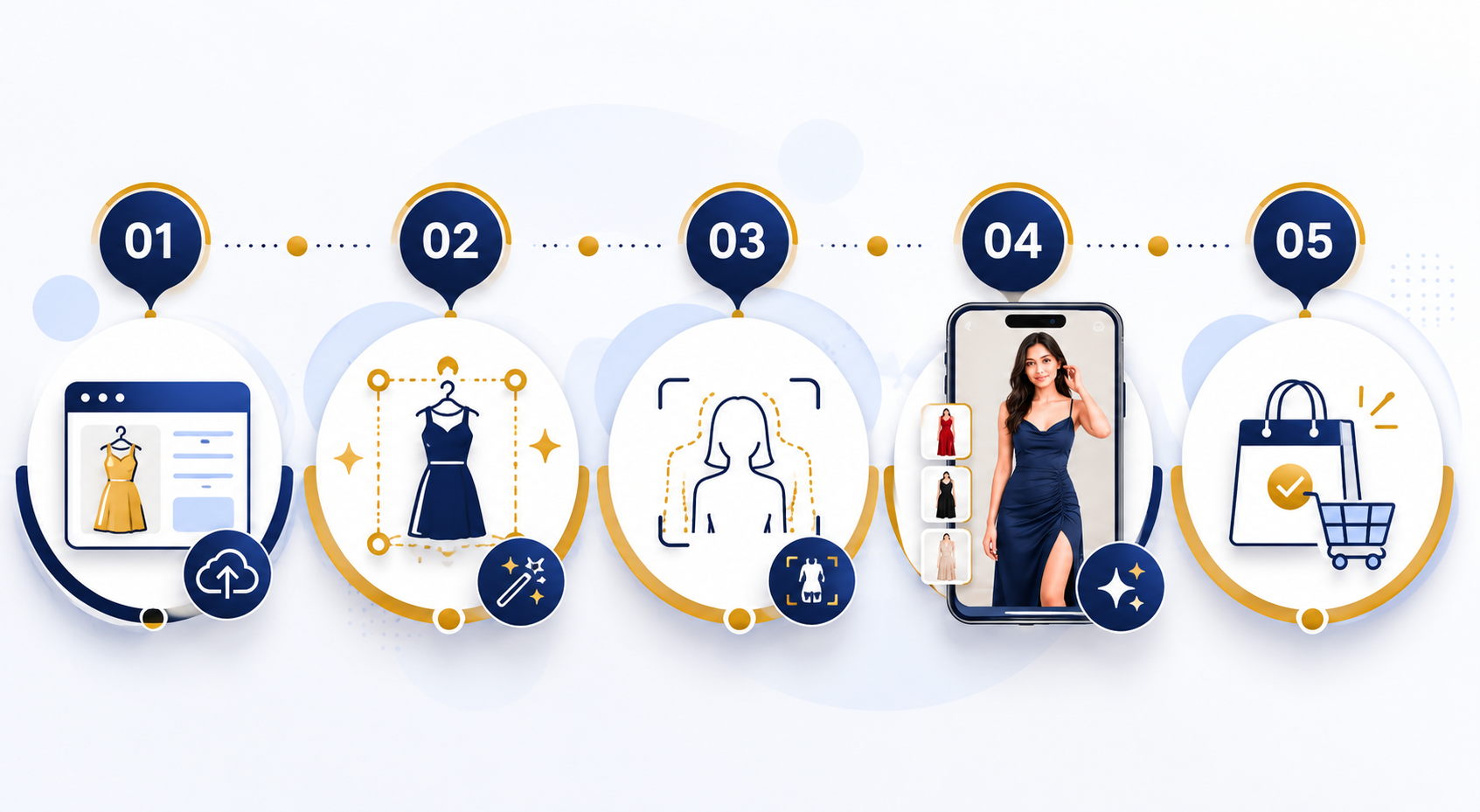
Step 1: Go to the Shopify App Store and search for a virtual try-on app
Open your Shopify Admin and navigate to Apps, then visit the Shopify App Store. Search for "virtual try-on" or "AI try-on." You will see several options. For fashion and apparel stores, look for an app that specifically uses generative AI rather than AR, as generative AI produces more realistic results for clothing.
Torziva is available directly in the Shopify App Store and is built specifically for fashion merchants selling clothing, dresses, tops, and full outfits.
Find Torziva in the Shopify App Store at torziva.site
Step 2: Install the app and approve permissions
Click Install on the app listing. Shopify will show you the permissions the app needs — typically access to your product catalog and theme. Click Approve. You will be redirected to the app dashboard inside your Shopify Admin. This takes about 60 seconds.
Step 3: Connect the app to your product catalog
Once inside the app dashboard, the app will read your product catalog automatically. For most apps including Torziva, you do not need to manually tag or configure products. The app connects to your existing product listings and makes them try-on enabled without any additional setup on a per-product basis.
If the app requires you to select which products are try-on enabled, start with your top 10 to 20 bestsellers. These are the products most likely to benefit first from higher conversion rates.
Step 4: Add the try-on button to your product pages through the Theme Editor
This is the step most guides make complicated, but it is straightforward. In your Shopify Admin, go to Online Store, then Themes, then Customize. This opens the Theme Editor. Navigate to a product page template. In the left sidebar, find the Product Information section and click Add Block. Scroll to the Apps section and select the try-on button block from the app you installed. Drag it to position it near your Add to Cart button — this is the highest-impact placement because it appears right when the shopper is making their purchase decision.
Click Save. The button is now live on your product pages.
Step 5: Test it on a real product before going live to customers
Go to any product page on your live store as a customer would see it. You should see the try-on button. Click it, upload a test photo, and check that the AI generates a realistic result. Test on two or three different product types — a simple top, a dress, and a more structured piece if you carry them — to see how the output looks across your catalog.
If the results look good, you are live. If any specific product type looks off, check that the product image is clear and shows the garment fully.
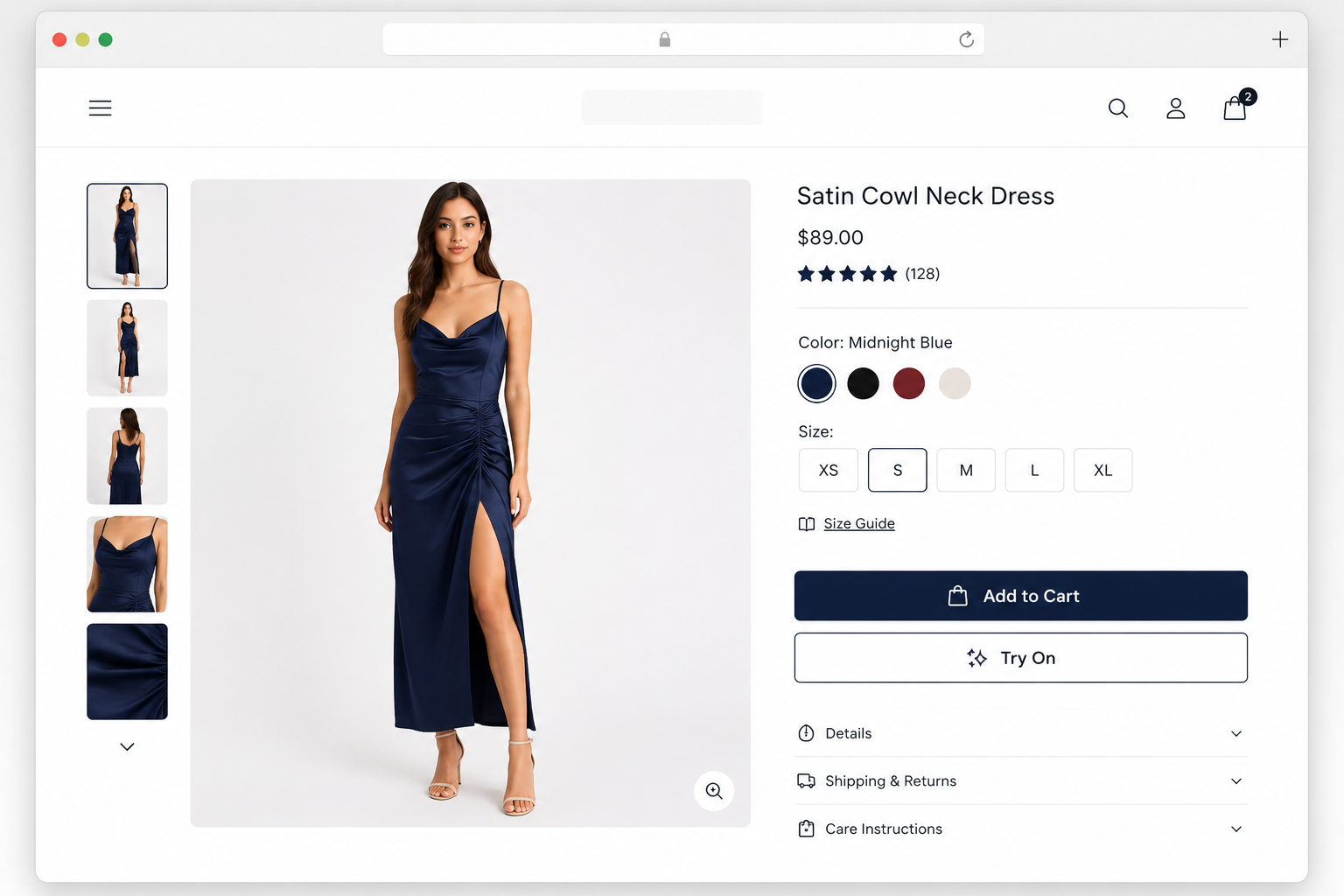
What Results to Expect After Installing
Most merchants start seeing a measurable impact on conversion rates within the first two to four weeks after installing, once enough shoppers have used the feature.
The most commonly reported results across stores using AI virtual try-on are higher conversion rates on products that shoppers try on, lower return rates because shoppers buy with more confidence, and longer time on product pages as shoppers engage with the try-on feature before deciding.
Stores using Torziva report up to 32 percent higher conversions and up to 40 percent fewer returns. These numbers vary by store depending on product type, traffic volume, and how prominently the try-on button is placed on the product page.
To track results yourself, check your Shopify Analytics for conversion rate changes on the products where try-on is active. Most apps also provide their own analytics showing how many try-ons are happening and which products are being tried on most.
Common Questions About Adding Virtual Try-On to Shopify
Do I need a developer to add virtual try-on to my Shopify store?
No. Modern AI virtual try-on apps for Shopify install through the App Store with no custom code. The try-on button is added to your product pages through Shopify's Theme Editor using a block system that works like drag and drop. The entire process from install to live takes under 30 minutes for most merchants.
Does virtual try-on work with any Shopify theme?
Yes, with any theme that uses Shopify's standard block system. This includes all themes from the Shopify Theme Store and most third-party themes. The app installs a block that you add to your product page template through the Theme Editor. If you are using a heavily customized theme, check with the app's support team to confirm compatibility before installing.
Do I need 3D models of my products for virtual try-on?
No, not for generative AI try-on apps. These apps work from your existing product photos — flat lays, model shots, or hanging garment images. You do not need to prepare any special assets. This is one of the key differences between modern generative AI try-on and older AR approaches, which required expensive 3D modeling for every SKU.
How long does it take for virtual try-on to generate a result?
Most generative AI try-on apps produce a result in 5 to 15 seconds after the shopper uploads their photo. The processing happens on the app's server, not on the shopper's device, so it works on any smartphone or computer regardless of processing power.
Will virtual try-on slow down my Shopify store?
No. The try-on feature only activates when a shopper clicks the button. It does not load any heavy assets on page load, so your Shopify store's page speed scores and Core Web Vitals are not affected by having the app installed.
What types of clothing work best with AI virtual try-on?
Generative AI try-on works best for tops, dresses, skirts, and full outfits. It handles casual and structured pieces well. Very complex layered outfits with many overlapping components can sometimes produce less realistic results, though quality has improved significantly with newer AI models. Footwear and accessories use different technology — for shoes, bags, or jewelry, look for AR-based apps rather than generative AI.
Choosing the Right Virtual Try-On App for Your Shopify Store
Not all virtual try-on apps are the same. Here is what to check before installing.
Make sure the app uses generative AI rather than AR overlays for clothing. AR works well for rigid objects like glasses and jewelry but produces poor results for fabric garments. Any app marketed specifically for fashion and apparel should be using generative AI.
Check the pricing structure carefully. Some apps charge per try-on as an overage on top of the monthly plan. If your store has real traffic, those overage charges add up fast. Look for flat monthly pricing with no per-try-on caps.
Check for active product limits. Some apps cap how many of your products can have try-on enabled on each pricing tier. For a store with a large or growing catalog, unlimited product coverage from the entry plan is important.
Look at whether the app installs natively through Shopify's App Store and uses Shopify's billing system. This keeps everything inside your existing Shopify workflow and avoids third-party billing complications.
Read our full comparison of the best AI virtual try-on apps for Shopify
Get Started with Torziva on Your Shopify Store
Torziva is an AI virtual try-on app built specifically for Shopify fashion and apparel merchants. It uses generative AI to produce photorealistic try-on results, installs directly from the Shopify App Store with no code required, and uses flat monthly pricing starting at $19 per month with no product caps or overage charges.
Install Torziva on Your Shopify Store
See full pricing and features on the
Was this article helpful?
Your feedback helps us improve our content quality.
Torziva Team
Verified ContributorTorziva Team
Torziva is an AI virtual try-on app for Shopify fashion merchants.